Turn Analyser Usage
Windows:
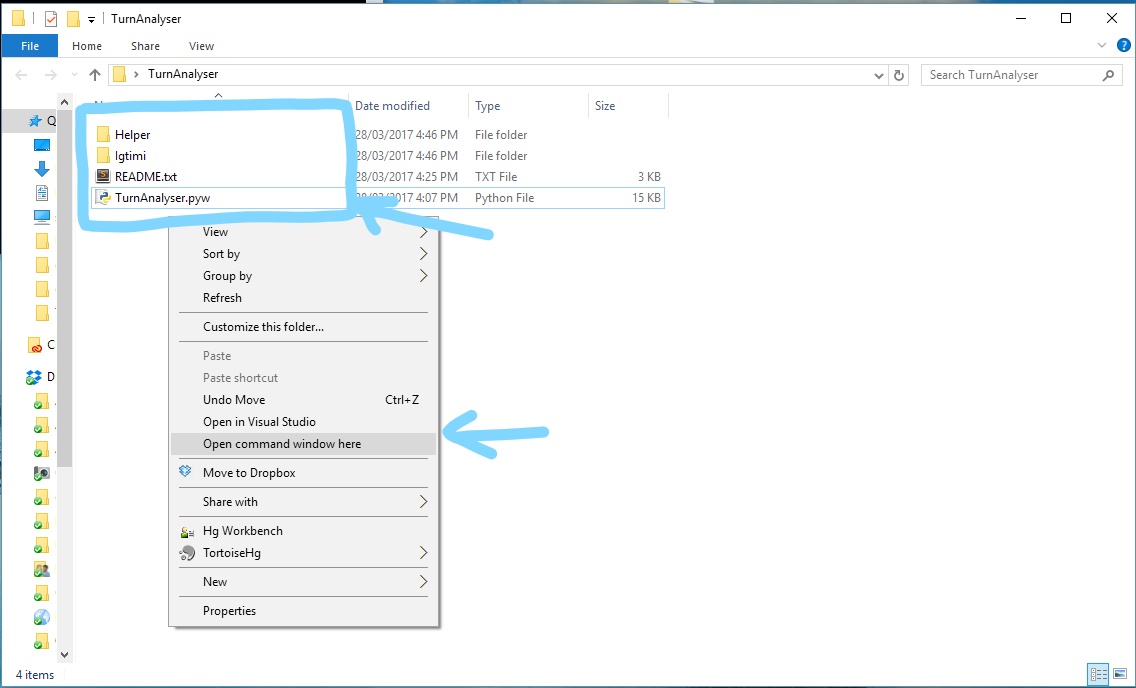
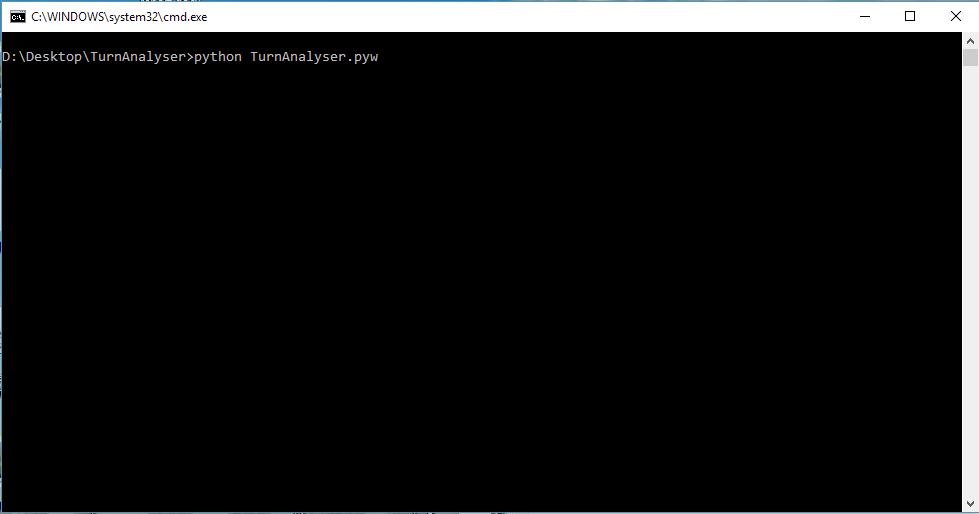
Navigate to the folder containing the TurnAnalyser.pyw, and the "Helper" and "Igtimi" folders. Hold shift whilst using right click and select "Open command window here". In the command prompt that has just opened type:
python TurnAnalyser.pyw
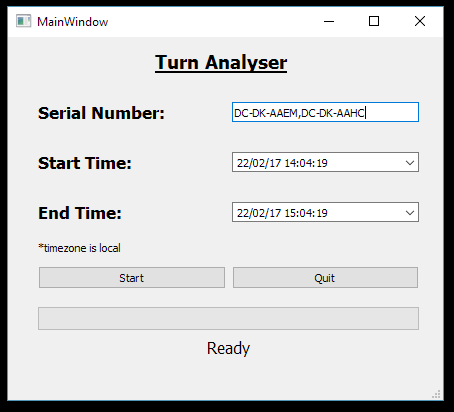
This will open a window to type the serial number (can be comma separated to enter multiple serials at once), a start time, and an end time. Click "Start" to begin the analysis. Once complete the output files will be in the "Output" folder.
 |  |  |
Alternatively if you have followed the additional steps during the installation you can just double click on the "TurnAnalyser.pyw" to open the program.
Mac OSX:
Open terminal (found in Applications/Utilities). Navigate to the folder containing the TurnAnalyser.pyw, and the "Helper" and "Igtimi" folders. If you have never done this before you can follow these steps:
-
Place the folder containing those files on the Desktop and call it "TurnAnalyser"
-
Type the following into terminal to change to this directory (ignore the $).
-
$ cd ~/Desktop/TurnAnalyser
If you want to learn more about how this works check out this article at http://www.macworld.com/article/2042378/master-the-command-line-navigating-files-and-folders.html
In terminal type:
python TurnAnalyser.pyw
This will open a window to type the serial number (can be comma separated to enter multiple serials at once), a start time, and an end time. Click "Start" to begin the analysis. Once complete the output files will be in the "Output" folder.